• Home
  • Plugins
  • Services
  • Solutions
  • Pricing
  • Blog
  • Contact
  • Support
  • Login
  • Get Free Demo
  • Home
  • Documentation
  • Plugin Installation
  • Statistics

How To Install Redmine X Statistics

1.

Install Base Statistics

Unzip the archive and upload the folder redmine_x_statistics to redmine_root/plugins or upload the archive in the same location and perform the unzip command in the console. Do NOT change the plugin folder name.

2.

Install Gems

From redmine_root run bundle install.

If the gems were installed correctly, this is roughly what you should see.

Bundle install
3.

Migrate

When installing Redmine X Statistics plugin, you need to run the migration command bundle exec rake redmine:plugins:migrate RAILS_ENV=production.

If the migration went well, this is roughly what you should see.
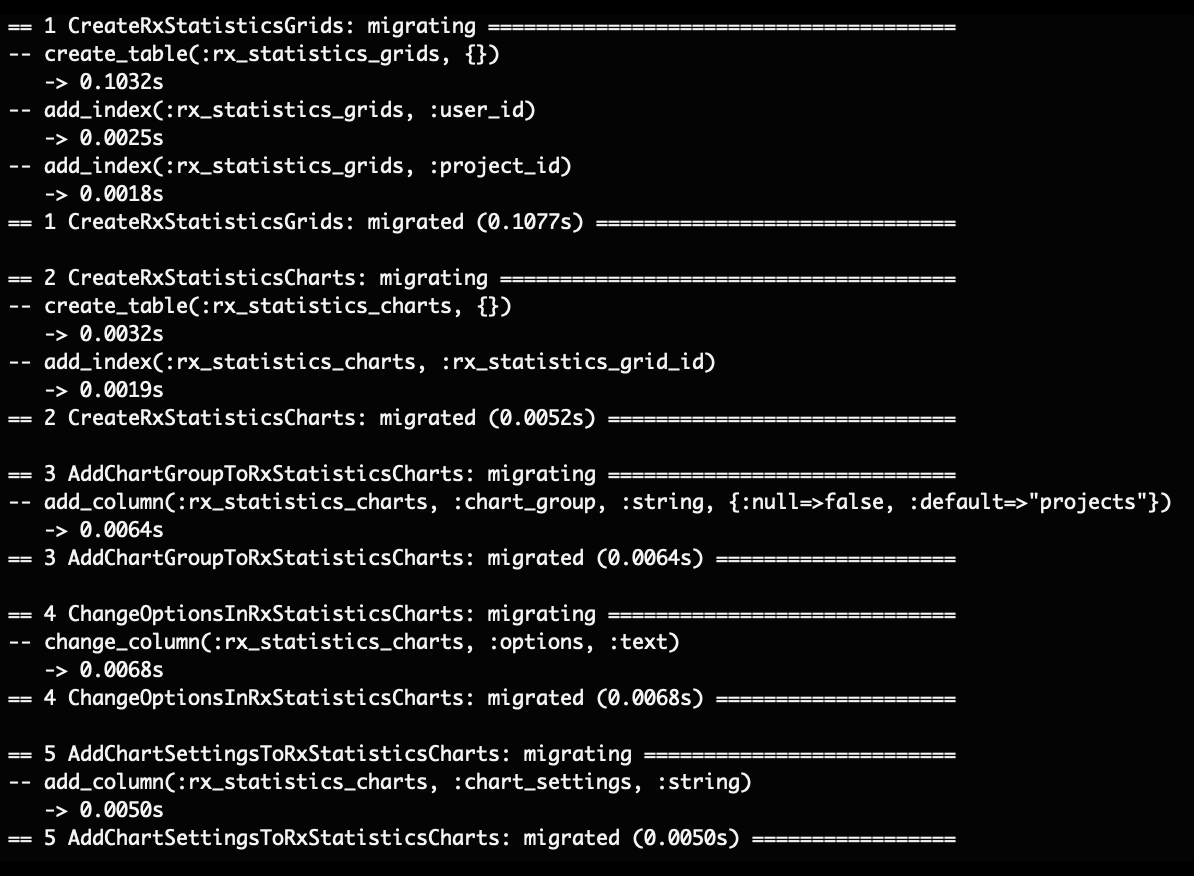
Redmine migration
4.

Load Default Data (1.1.2 and below only)

If you have a version 1.1.3+, you can skip this step. When installing Redmine X Statistics plugin, you need to run bundle exec rake redmine:redmine_x_statistics:load_default_charts RAILS_ENV=production.

If the default data were loaded correctly, this is roughly what you should see.

Load default data
5.

Install Statistic Addons

If you are installing additional graphs into the Statistics plugin, then unzip the archive and upload the folder redmine_x_statistics to redmine_root/plugins. If your transfer client is set right, the additional graph folder will get uploaded into /plugins/redmine_x_statistics/lib/redmine_x_statistics/providers/data.

If you get asked whether to override or merge, always choose merge. If you are not sure how your client behaves, go to the path /plugins/redmine_x_statistics/lib/redmine_x_statistics/providers/data and upload just the graph folder, e.g. crm or helpdesk.
6.

Restart

Restart Redmine. Based on your hosting provider / web server, you will need to run the following commands. Puma: sudo systemctl restart redmine.yourcompany.com.service or Passenger: touch tmp/restart.txt.

7.

Allow Statistics For Specific Roles

Go to ~/roles and for each role, select the permissions for the project and global Statistics.

8.

Add code

From Redmine 5.0.3, there is a security issue so you will need to add 1 line of code into the Redmine config file. Locate config/applicaiton.rb and line 38 which says ActionController::Parameters. Add 1 line under this line saying ActiveSupport::Durationso the code looks like this:
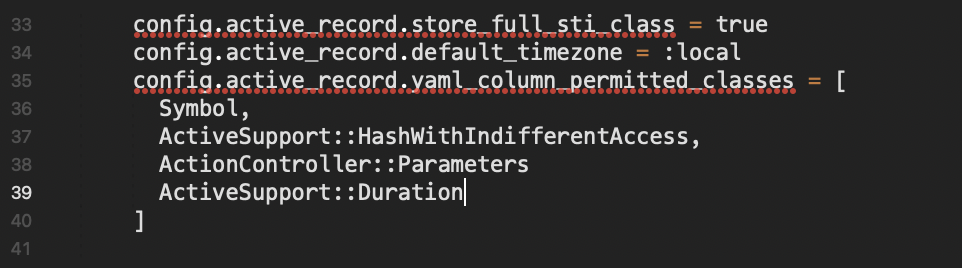

Redmine X Statistics

Documentation

  • Plugin Installation
    • UX Upgrade
    • Gantt Chart
    • Resources
    • Agile My Page
    • Project Templates
    • Statistics
    • Inline Edit
    • Timesheet
    • Bitnami
  • Plugin Update
  • Plugin Uninstallation
  • Redmine X Documentation
RedmineX Logo

RedmineX is operated by Projectino s.r.o.

Europe, Prague
Světova 523/1, 180 00 Prague 8, Czechia


North America, New York
WeWork, 85 Broad Street, New York, NY 10004, USA


Asia, Hong Kong
WeWork, 46/F, Lee Garden One, 33 Hysan Avenue, Causeway Bay, Hong Kong

GoPay VISA & MasterCard Paypal

Credentials

Company reg. no.: 09829202​
VAT ID: CZ09829202​
IBAN: CZ5608000000002039288223
BIC/SWIFT: GIBACZPX
Youtube
LinkedIN
Facebook

Resources

  • Redmine Blog
  • Redmine Knowledge Base
  • Terms & Conditions
  • GDPR - Request Data
  • Data Processing
  • Client Testimonials
  • FAQ
  • Plugin Installation
  • Plugin Update
  • Plugin Uninstallation
  • Documentation
  • Changelog
  • Redmine Kickstarter
  • Authors

We Are An Alternative To

  • Redmine Alternative
  • Basecamp Alternative
  • JIRA Alternative
  • Trello Alternative
  • Redmine Online Demo
  • Redmine Theme
  • Project Management Software Comparison
  • MS Project Alternative
  • Redmine vs Openproject
  • Redmine vs Asana
  • Redmine vs Trac
  • Youtrack vs Redmine

© 2025 RedmineX - stress-free projects

Denis Novak

Support

Having trouble with a plugin or Redmine?

Anna Jarošová

Onboarding

Need a demo or ask a pre-sale question?

Michal Staněk

Technical

Having tech or licensing questions?

Cron Job Starts